The Level 2 Docker Dude (or Dude-ette :^) is a person who knows how to start and stop containers in docker.
But how do you access these containers? What do you do with these containers?
Ports
Most Microsoft based developers are slightly familiar with ports. Linux developers are intimately familiar with ports. Here is a link to SASD Maximo (development instance)
But here is another link
The thing about Maximo is that we have it setup on multiple instances, with a load balancer that switches the computer user over to the least used instance. But really what’s happening is the load balancer is directing traffic to a different port.
9086 in the URL is a port.
Many times, docker images are setup to communicate with a certain port. Sometimes the port that is provided is inconvenient to you. When your using Docker containers you kind of need to know the port of the process, and what port you are communicating with.
For example, you might have the timesheet docker setup on port 2000. But you want to run the timesheet docker containers 3 times simultaneously. To address each of those containers, you need a different port address. Maybe the first instance is 2000, but maybe the second is 2001, and the third 2002. Each of those containers might run on port 2000, but you are communicating with them via 2000, 2001, and 2002.
some Docker commands
Docker run -d -p OutsidePort:InsidePort [image name]
This form of the docker command will run docker as a daemon (that is in the background, the -d is for daemon), and it will connect up a port. (the -p specifies port)
For example
Docker run -d -p 81:80 docker/getting-started
This is saying you want to run the docker/getting-started container, you want to communicate with its port 80, using your port 81
Note: If you get an error try a different outside port like 93:80.
The image name comes from a different docker tutorial. After getting a new computer, the first time I ran this it downloaded the image, built it and then launched it.
The arguments that I used, “-d -p 93:80” from docker, the getting-started hub page. I searched for the image name and it had a page with this information. When I ran this I got the following results.

Now to access this container, open a browser and navigate to Localhost:93
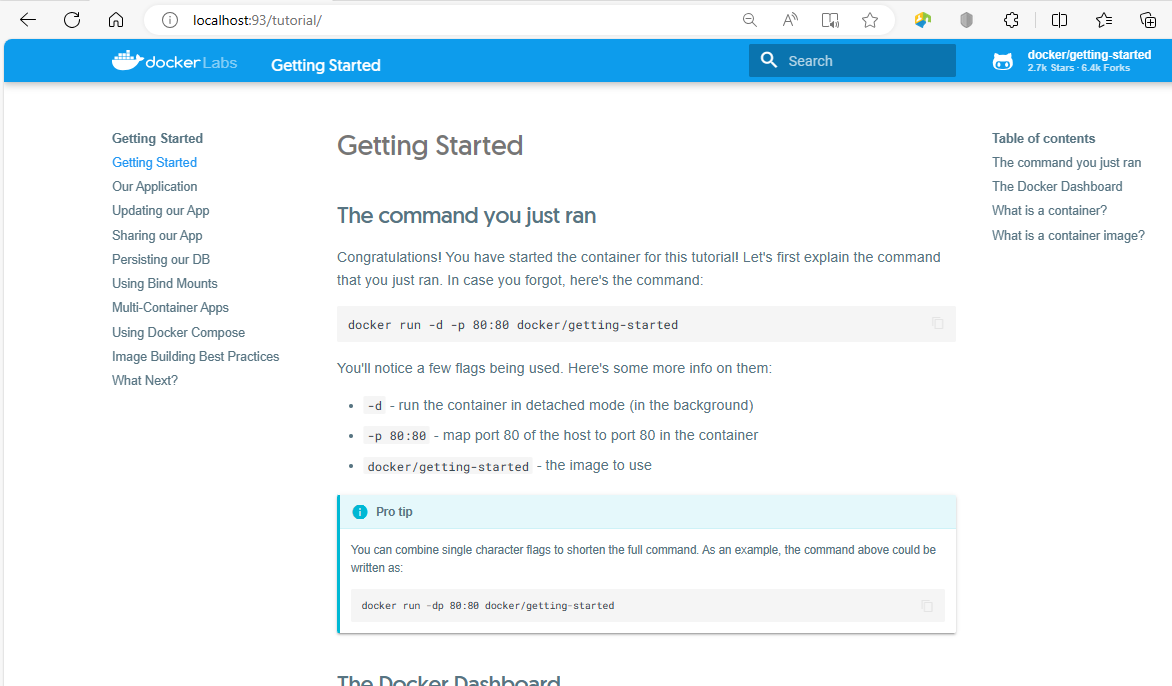
What you should understand is
- In your browser you navigated to localhost:93 and it found something!
- What it found was the docker container
One thing, the web page says you are supposed to use the command with 80:80. Here’s what happens when I try this

When I try to run with 80:80, docker throws an error message. That is because on my computer, port 80 is already being used for something else. This is just exactly what the port overrides are for
Security topic
It seems like from a security perspective, you should know what each port being exposed on a docker container does. They all represent attack vectors.
I think, while many of these early lessons dont provide ports. This will become big as you start moving these into production environments.