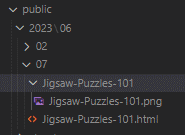
Hexo has a couple of Native Languages. The one that I use is Markdown, which is a dummied down language designed to create webpages. I create a markdown page and hexo will display it as a static webpage.
The problem I wanted to solve is ‘how do I add a picture to a webpage’
Adding pictures requires a plug-in.
Check package.json and see if you have a dependancy named ‘hexo-asset-link’. If the dependencies section does not show this, then you’ll need to install the plugin.
First, Install the plug-in.
1 | npm i -s hexo-asset-link |
Second, change a parameter in _config.yml
1 | post_asset_folder: true |
(I changed the parameter called post_asset_folder from False to true)
That’s the basic setup, the next step is to add graphics to a page.
Here’s what you will do.
- Create a document (for example hexo new draft ‘Jigsaw-Puzzles-101’)
- Create a folder in the posts folder (for example a folder named ‘Jigsaw-Puzzles-101’)
- In your draft document add a link where you want to place the picture. ( For example  )
Here is more detail
Your document is in the Drafts folder (for example Jigsaw-Puzzles-101.md) and you have graphics in _posts\Jigsaw-Puzzles-101
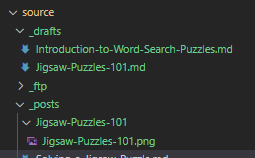
Your document contains something like this

Hexo Publish will take the  structure and create a proper link. So did . Where X should match the name of your document.
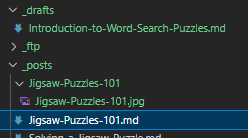
Hexo Generate created the x.html, the x\ folder, and copied _posts\x\x.png into the x\ folder