The Level 1 Docker Dude (or Dude-ette :^) is a person who wants to learn a bit about starting and stopping a docker container.
The Docker Dude could use the Kitematic tool, but knows, to advance further up the levels, he (or she) should use Docker commands from a command prompt. These commands could be added to batch files to setup an automated platform.
Some Docker Commands
Here are some basic docker commands.
To execute these commands, you will want to open a Dos window. Actually, according to the Pluralsight videos any kind of command processor (DOS, Bash, Powershell, VSCode Terminal, etc.) will work.
And a tip, since this document was originally written in Word, you should know a few idiosyncrasies that might crop up.
- Docker is case sensitive, but Word capitalizes the first letter of each sentence.
- Word will convert 2 dashes “ – “ into an elongated dash “ – “. Docker has options that are prefixed with single dashes, and double dashes, they have 2 different meanings.
And another tip, Docker is very well known in the Unix/Linux groups. I’m pretty sure when I tell you that I use Docker in Windows, you’d probably snicker. Maybe not as much as you would if I told you I primarily program in VB, but you’d still snicker.
A few big problems with Windows users, vs Unix/Linux - which may make itself obvious as you read these pages.
- There may be differences in the directions of the slashes.
- Windows users dont particularly care about letter cases. We might write /A, or /a - but since Docker comes from the Linux universe, it cares. Use the correct casing.
Commands
docker
This will give you a list of all docker commands
docker version
This gives you a version number of the docker running on your system. It’s another good indicator to tell if docker is running
docker images
This will give you a list of images installed on your computer
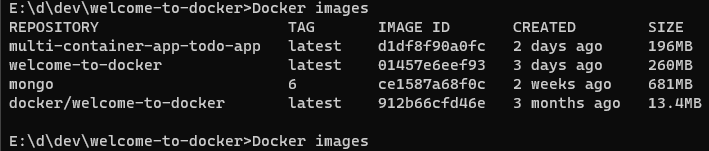
The list shows Images that were shown by running some of the Docker Lessons, that are currently running. Command Line functions exist and are described later to remove these.
docker ps
This will give a list of containers currently running.

In this case we have a list of 5 items. The ones showing names are the ones currently running.
docker ps -a
This will give you a list of all containers on your computer
- Notice the Container ID, there are Docker commands which want you to provide a Container ID. One nice thing about these commands is that you are not required to provide the whole ID, rather you can contain a subset. For example, on the list presented, ‘9a2f693be923’ and ‘9a’ will refer to the same container. The only warning is you cannot provide a substring that will return multiple containers.
docker run [image name]
This is used to run an image. The available images are shown on the ‘docker ps -a’ page.
For example
docker run mongo
If it looks locked up, then Open another command window and execute ‘docker ps -a’. You can see the image is running, but it has taken over control of the console.
docker run -d [image name]
- The -d argument instructs the run command to run the image as a daemon. That is, run as a background task.
In the previous example when we launched mongo, it took over our command window. That’s because command was running – eventually it will stop and the command prompt will be returned. One advantage is this gives docker a way to send output to a console.
But if it’s going to run indefinitely, it’s probably better just to kick it off and have it run in the background. That is what the -d command does.
docker run –name SqlCheckbookPrep -e “ACCEPT_EULA=Y” -e “SA_PASSWORD=x#!1” -p 1438:1433 -d mcr.microsoft.com/mssql/server:2019-latest -v e:\d\dockerSqlVolume:/var/lib/checkbook checkbook
- The –name argument gives the image a name. In this case SqlCheckbookPrep
- The -e argument sets up an environmental variable within the container - in this case it sets up an environmental variable named ACCEPT_EULA and it gives that variable a value of Y
- -p 1438:1433 - This argument set’s up a port. the 2 numbers are outside and inside. In this case it set’s up a port of 1438. When you direct data at port it will be directed to port 1433 inside the container.
- -d is the image name. In our case we are launching a sql server.
- -v - is a volume
*** get back to volume
The think about the run command… This is the command that turns the docker runfiles, and the images that you downloaded into an actual running container. (aka it’s own computer) When you run, the images are all brought in, and then a read/write layer is added. Then you use the Stop and Start commands to safely shut down the computer and start it back up.
docker stop [container id]
This function is used to stop a running container
For example
docker stop 9a2f693be923
The container id came from the prior docker ps -a statement.
After executing ‘docker stop’, If you do docker ps -a, you’ll notice the status of the container stopped
